
Uploading multiple photos
You can attach multiple photos to a single conversation using a few different methods. The full conversation editor, accessed from the [New Conversation] button on the left-side menu, is the best way as it also gives a preview of your conversation.
The new way!
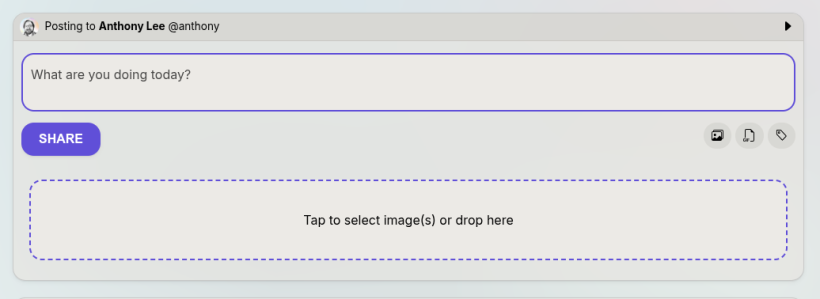
As of September 20th 2026, you can now pick multiple images when using the normal new conversation box. You will be redirected to the full editor and your images will be attached automatically.
Option A: New Conversation from the left menu
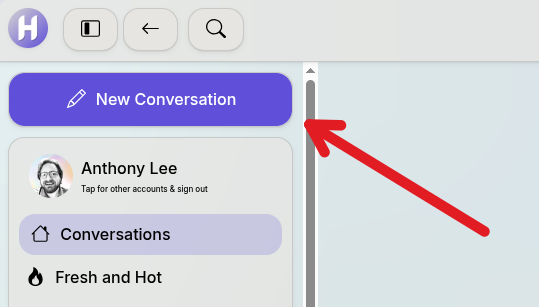
If you click the [New Conversation] button from the left menu, this will bring up the full page editor that lets you upload multiple images or videos at once. The button is smart, and if you are in a café when you click it the editor will automatically be set to post in that café.
Option B: Move to Full Editor button
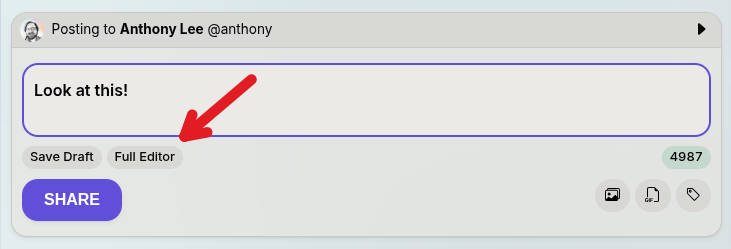
If you have already started typing a new conversation and start thinking, "Hmm...this is going to be a little longer and I have files to add", click the [Full editor] button! This will move save the contents and redirect you to the full conversation editor to easily add more files and view a preview of your conversation.
Option C: Make a draft and do it later via full editor
If you click [Save Draft] above the share button, your post will be saved for later and can be edited before it goes live. You can see your drafts by clicking [My Drafts] on the left-side menu, or by clicking the notification that appears when you save a draft.
Pick your draft, click [Manage & Edit Draft], and you will have more options including attaching one or more photos. You can keep doing this until all your photos are uploaded and publish it whenever you're ready.
Option D: Attach another photo after the post has been made
You can also after your content is posted click the [options] button on the top right of your conversation to get a menu and the first option will be to attach another photo.
After a conversation or comment has been made, you can click the [options] button at the top-right of the item. An option will appear to [Attach Photo], and you can do this multiple times. However, this option will only allow you to add one photo at a time.